

Photo & image
Alpha / v0.21.1LightCraft.
Free online RAW photo editor
Open a photo or supported RAW file, adjust exposure and color, then export a new image. Free with no account. RAW support depends on the camera and file variant.
Desktop browser recommended. The editor downloads on first use; loading time depends on your connection and device.
In your toolkit
- 01
Non-destructive edits
- 02
Exposure & color
- 03
Photo development
- Works with
- RAW / JPG / TIFF
- Web release
- v0.21.1 · Alpha
- Open in your browser
- Free to use. No account needed.
Before you start
Alpha. RAW camera support varies. This is the largest download in the collection; allow extra time on first launch.
Save or export before closing the editor.
Release notes & downloadsLicense & attribution
The editors use MIT / Apache-2.0 licensing; bundled assets retain their own licenses. See the source, release and license files below.
What can I edit with this tool?
LightCraft — Free online RAW photo editor. Open a photo or supported RAW file, adjust exposure and color, then export a new image. Free with no account. RAW support depends on the camera and file variant.
This tool differs from a layer-based compositor. LightCraft is organized around a photograph and its development settings, with a library for reviewing a larger collection. The README calls the project alpha and gives camera-specific caveats for RAW files. A photograph that opens is not proof that its colors match an established camera profile, so evaluate your own files carefully.
Which tasks does it support?
Non-destructive light and tone
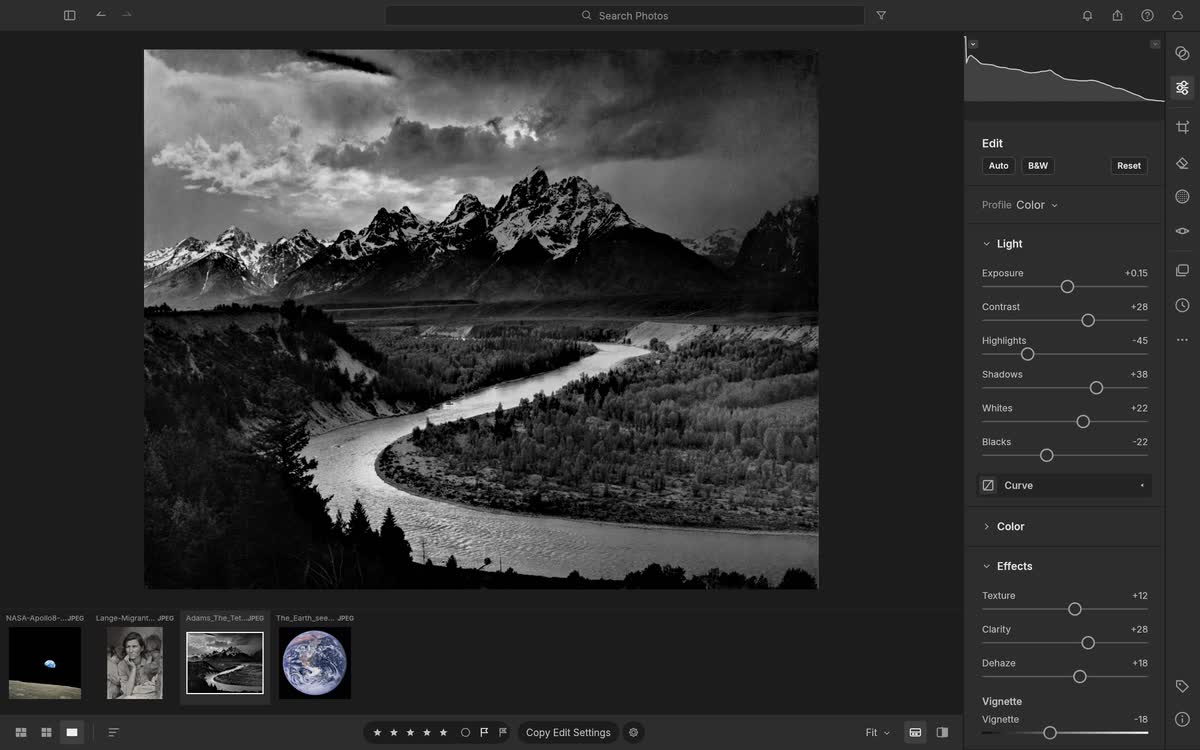
Exposure, contrast, highlights, shadows, whites, blacks, and tone curves change the rendered photograph while preserving the original. The README describes a wide-gamut, 32-bit float pipeline and local tone mapping. Compare the edited image with the original to see whether recovered detail or added contrast still looks natural.
Color and local adjustments
White balance, vibrance, saturation, an eight-band Color Mixer, and three-way color-grading wheels provide several levels of color control. Masks can come from a brush, linear or radial gradient, or selected luminance and color ranges. Local settings let you change a sky or subject area without applying the same effect to the entire image.
Develop and organize a collection
The README lists albums, folders, ratings, flags, color labels, search filters, and sort choices. That makes it possible to select promising frames before editing them. Presets can be applied with an amount control, and settings can be copied or synchronized across selected photos rather than repeated by hand.
Crop and finish
Cropping supports free and fixed ratios, rotation, flips, and geometry controls. Texture, Clarity, Dehaze, vignette, and grain offer finishing options after basic exposure and color are set. Black-and-white conversion has its own mixer so different source colors can take different tonal values in the final image.
How do I edit and save a file?
- Open the hosted web editor and start with a copy of a JPEG or a camera file the release supports. Allow extra time for its first load because the hosted LightCraft build is larger than the other tools here.
- Look at the unedited photograph first. Change exposure and white balance in small increments, then compare before and after. Keep the original available so you can judge whether a recovered highlight or shadow still looks believable.
- If a correction should affect only one area, create a brush or gradient mask and adjust that region. Use the library's ratings or flags to separate useful frames before synchronizing a look across a group.
- Choose the crop and export the result to your device. Check its color and detail in another viewer. For RAW work, compare against the camera JPEG or a trusted development tool if accurate color matters.
Questions about using this editor
Can I use Get Artcraft for free without signing up?
Yes. All 12 editors are currently free to use, with no account, subscription or installation required. AI generation and paid third-party services are not included.
Where are my files saved?
Save or export your files to your own device. The editors process files in your browser, and this site does not provide cloud file storage. Some editors keep local recovery data; that is not a substitute for an exported copy.
Can I use the editors on a phone?
A desktop browser is recommended. Use a browser with WebAssembly and WebGPU or WebGL2 support, plus a keyboard and mouse. You can try opening an editor on a phone, but its controls and graphics may not work on your device.
Will every RAW camera file develop correctly?
No. The upstream Feature status section names camera calibration gaps and specific compressed or variant RAW cases that may use an embedded JPEG preview. Check its camera-support documentation and compare a sample from your own camera before editing a whole shoot.
Are my adjustments destructive?
The README describes the development workflow as non-destructive: the original is retained while settings change the rendered output. Still, keep independent originals and exports. Clearing browser data or losing a session can affect local preferences or recovery data.
Is it a full Lightroom replacement?
The project does not make that claim. Its own alpha status notes gaps including measured camera color calibration, some RAW variants, on-screen HDR, video, and classic Print, Book, and Map modules. Use the exact release and your own images to decide whether a workflow is ready.
What are the current limits?
LightCraft is alpha. RAW decoding and color accuracy depend on the camera and file variant; some unsupported compressed files fall back to embedded previews. The upstream README also notes missing measured calibration, on-screen HDR, video, and some publishing modules. A developed RAW may require substantially more data than a preview, so a large browser download or file can take time. Preserve originals, compare colors, and test exports before using the tool for a critical photo delivery.



Desktop browser recommended. The editor downloads on first use; loading time depends on your connection and device.
Open LightCraft