

Video & motion
Alpha / v0.20.1FilmCraft.
Free online video editor
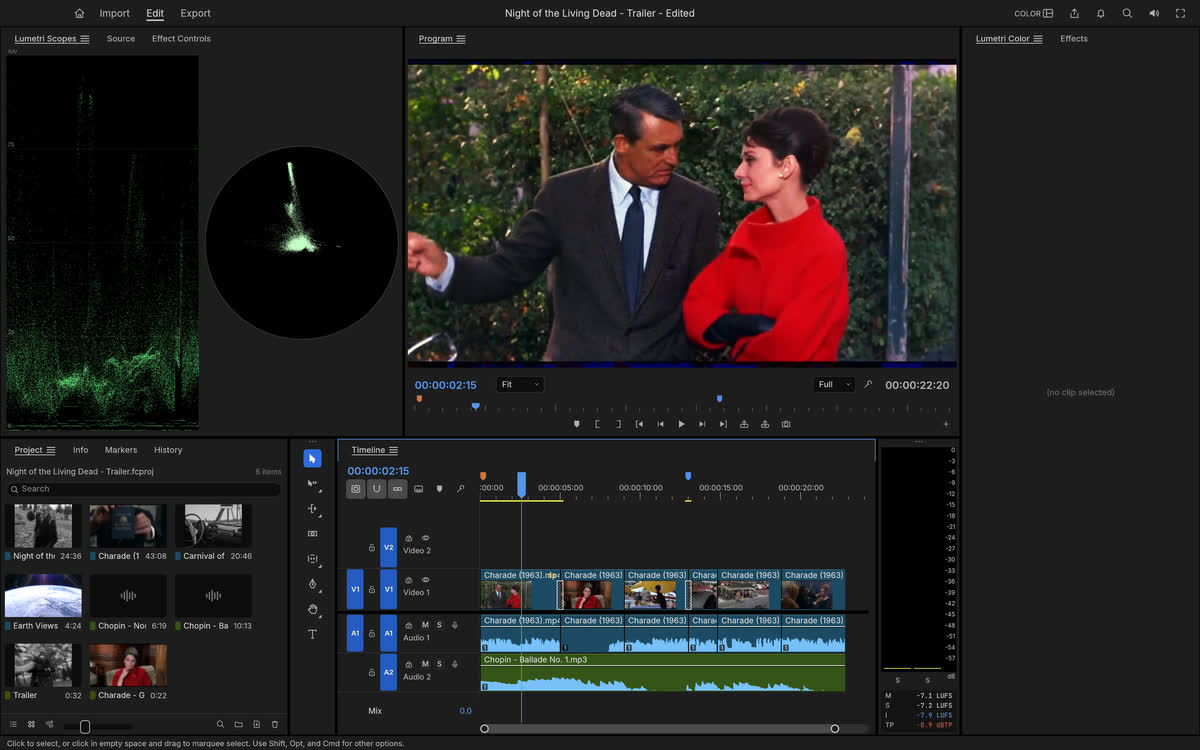
Arrange video clips and audio on a timeline, add transitions, then export a sequence. Free with no account. Browser codec support and memory limit what you can render.
Desktop browser recommended. The editor downloads on first use; loading time depends on your connection and device.
In your toolkit
- 01
Timeline editing
- 02
Effects & transitions
- 03
Video and audio export
- Works with
- MP4 / MOV / WebM
- Web release
- v0.20.1 · Alpha
- Open in your browser
- Free to use. No account needed.
Before you start
Alpha. Large videos need significant memory. Some desktop background tasks are unavailable in the single-threaded web build.
Save or export before closing the editor.
Release notes & downloadsLicense & attribution
The editors use MIT / Apache-2.0 licensing; bundled assets retain their own licenses. See the source, release and license files below.
What can I edit with this tool?
FilmCraft — Free online video editor. Arrange video clips and audio on a timeline, add transitions, then export a sequence. Free with no account. Browser codec support and memory limit what you can render.
The README calls FilmCraft alpha. Many editing operations already exist, but the project's own status distinguishes visible features from the level of reliability needed for complex work. A short test sequence is the right place to learn a control, measure browser performance, and confirm the final render before trying a demanding project.
Which tasks does it support?
Familiar timeline editing
Mark source In and Out points, insert or overwrite clips, then use ripple, roll, slip, slide, rate stretch, or razor edits to change timing. The README describes track targeting, linked selection, markers, trim controls, and a trim monitor. These support an intentional cut rather than simply joining files end to end.
Color and effects
The documented color workspace includes exposure and contrast, curves, wheels, a secondary color selection, vignette, and scopes. Clips can also carry motion, opacity, blend modes, transitions, and keyframed effects. Work from a neutral image toward the result you want, comparing the graded frame before and after each change.
Sound with the picture
FilmCraft's README lists loudness meters, clip effects, an audio track and clip mixer, submixes, sends, automation, and crossfades. That lets you check dialogue or music against the picture while editing. A visual preview alone cannot tell you whether an export meets the intended audio level.
Output and project exchange
The README documents H.264 MP4 output and other renders such as ProRes, image sequences, GIF, and WAV, along with several timeline exchange formats. Support is not identical across codecs or platforms. Choose a small representative sample and test playback in the destination environment.
How do I edit and save a file?
- Launch the web editor and create a disposable sequence. Import a short clip that your browser can handle, then view it in the source monitor before placing it on the timeline.
- Mark a usable range and insert it onto the desired track. Add another clip, then test a trim operation so you can see how the cut changes without rebuilding the whole sequence.
- Adjust one color or audio parameter, and preview the affected section. If you add an effect or transition, watch the full change at normal playback speed as well as at a paused frame.
- Export a short sample first. Play its video and audio outside the editor, check duration and synchronization, then decide whether the same settings suit the complete project. Keep your source media and project files.
Questions about using this editor
Can I use Get Artcraft for free without signing up?
Yes. All 12 editors are currently free to use, with no account, subscription or installation required. AI generation and paid third-party services are not included.
Where are my files saved?
Save or export your files to your own device. The editors process files in your browser, and this site does not provide cloud file storage. Some editors keep local recovery data; that is not a substitute for an exported copy.
Can I use the editors on a phone?
A desktop browser is recommended. Use a browser with WebAssembly and WebGPU or WebGL2 support, plus a keyboard and mouse. You can try opening an editor on a phone, but its controls and graphics may not work on your device.
Can I open a Premiere project directly?
The upstream status says native Premiere project files are a gap. FilmCraft documents several interchange formats, but that is different from opening every project and preserving every effect. Use a copy and inspect any transferred timeline carefully.
Does browser rendering match a desktop workstation?
No performance guarantee is made. The README points out remaining speed limitations on large footage and CPU-heavy operations, and browser GPU and memory support add another variable. Try a short sequence before committing to a full-length edit.
Which export should I choose?
The README lists MP4, ProRes, image sequences, animated GIF, WAV, and more. Choose according to the destination's accepted format, then validate a small render there. Some codecs support reading without supporting encoding, so check the release's export dialog.
What are the current limits?
FilmCraft is alpha, and its README estimates a substantial gap between feature coverage and readiness for real production. Large footage can be slow, some color and export work still uses the CPU, and native Premiere project import is not available in the pinned project's status. Codec and hardware support depend on the environment. Preserve originals and media links, test a representative export, and avoid relying on a single browser session for irreplaceable edits.



Desktop browser recommended. The editor downloads on first use; loading time depends on your connection and device.
Open FilmCraft