

Documents
Alpha / v0.19.1Free Slide & Presentation Maker
DeckCraft · Online slide editor
Create a presentation in your browser or open a PowerPoint (.pptx) file. Choose a layout, add text and images, then present or export your deck. No account required. Check complex slides after importing or saving.
Desktop browser recommended. The editor downloads on first use; loading time depends on your connection and device.
In your toolkit
- 01
Slide editing
- 02
Presentation layouts
- 03
Visual storytelling
- Works with
- Slides / Presentation
- Web release
- v0.19.1 · Alpha
- Open in your browser
- Free to use. No account needed.
Before you start
Alpha. Advanced presentation features and Office compatibility are incomplete.
Save or export before closing the editor.
Release notes & downloadsLicense & attribution
The editors use MIT / Apache-2.0 licensing; bundled assets retain their own licenses. See the source, release and license files below.
What can I edit with this tool?
DeckCraft — Free online slide editor. Create slides with text, images and layouts, then present or export your deck. Free with no account. Complex PowerPoint files may change when imported or saved.
Presentation work has two separate checks: whether the file remains editable and whether the audience sees the intended result. DeckCraft is alpha, and its README distinguishes feature coverage from readiness to replace a mature presentation program. Build and export a short representative deck before trusting a long or important presentation.
Which tasks does it support?
Themes, masters, and slide structure
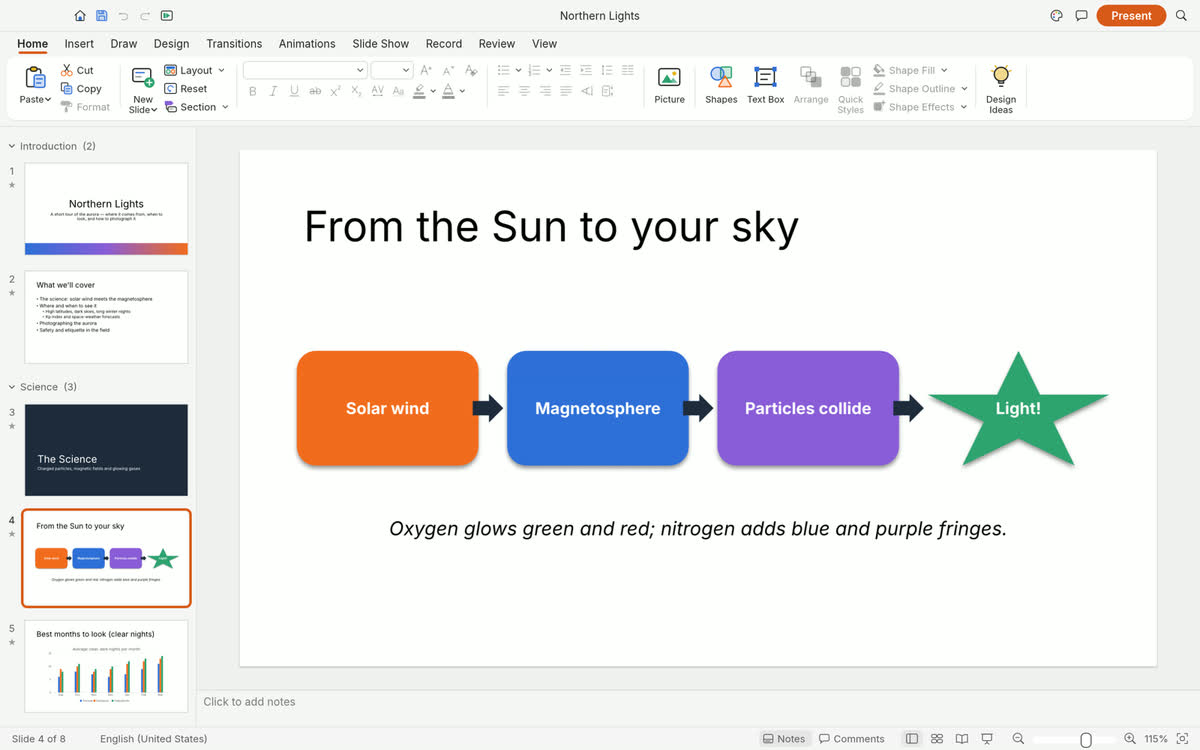
The README describes masters, multiple layouts, placeholders that inherit formatting and position, sections, notes, comments, and custom slide sizes. These controls reduce the need to repair every slide separately when a title or footer style changes.
Drawing and text
You can use preset shapes, connectors, freeform curves, merged shapes, gradients, image fills, shadows, and reflections. In-place text editing includes font and paragraph settings, lists, columns, vertical text, links, and autofit. The combination suits diagrams as well as text-led presentations.
Presenting and media
The documented slideshow includes transitions, several animation types, presenter view, a pen, rehearsal timing, and media playback. The README also lists pictures, tables, charts, basic SmartArt, audio, and video content. Test the specific media on the computer and browser you will use to present.
Exchange and export
DeckCraft can open and save PPTX according to the README, and export PDF, images, an animated GIF, and outlines. It mentions AutoRecover for unsaved work. These paths serve different goals: a PDF favors stable viewing, while a PPTX is intended to remain editable but requires compatibility checking.
How do I edit and save a file?
- Open the web editor and start with a small new deck or a copy of a PPTX. Select a theme and slide size before laying out the entire presentation.
- Add a title slide and a content slide using built-in layouts. Use a master or shared style for repeated elements instead of adjusting each slide independently.
- Place one chart, image, or media item, then run the slideshow. Check that text, animation order, audio, and transitions make sense at presentation speed, not only in the editing canvas.
- Save the editable deck and export a PDF or images for review. Reopen both outputs, compare slide count and appearance, and test the final presenter device before an important session.
Questions about using this editor
Can I use Get Artcraft for free without signing up?
Yes. All 12 editors are currently free to use, with no account, subscription or installation required. AI generation and paid third-party services are not included.
Where are my files saved?
Save or export your files to your own device. The editors process files in your browser, and this site does not provide cloud file storage. Some editors keep local recovery data; that is not a substitute for an exported copy.
Can I use the editors on a phone?
A desktop browser is recommended. Use a browser with WebAssembly and WebGPU or WebGL2 support, plus a keyboard and mouse. You can try opening an editor on a phone, but its controls and graphics may not work on your device.
Will a PowerPoint deck look identical after a round trip?
The README documents PPTX exchange but does not claim perfect parity. Animations, media, fonts, charts, and complex objects are all reasons to compare the imported and saved file in the destination program. Keep the original deck.
Can I export slides for someone without the editor?
Yes. The upstream README lists PDF with selectable text as well as PNG and JPEG, plus other outputs. The appropriate format depends on whether the recipient needs to edit, print, or simply view the slides. Inspect the export at full size.
Does presenter view work in every browser setup?
The project documents presenter view and slideshow tools, but browser permissions, media codecs, fonts, and display configuration vary. Rehearse on the same device and browser you intend to use, and keep a fallback PDF if timing or playback is critical.
What are the current limits?
DeckCraft is alpha. The pinned README measures broad feature coverage but estimates much less readiness for replacing PowerPoint in real work. Complex PPTX content, animations, typography, and media may differ between environments. The browser build may expose different device and playback limits from desktop releases. Keep the source deck, test any externally supplied PPTX on a copy, and inspect both the presentation run and the exported file before delivery.



Desktop browser recommended. The editor downloads on first use; loading time depends on your connection and device.
Open DeckCraft